# Configure AWS Bedrock Provider (Admin)
> This guide explains how administrators configure AWS Bedrock as the organization-wide LLM provider for Cline.
- 网址:https://funcoding.ai/agents/cline/enterprise-solutions/configuration/remote-configuration/aws-bedrock/admin-configuration/
- 来源:Cline 官方文档原文(英文),Apache-2.0 许可,同步于 2026-10-11
- 官方原文:https://docs.cline.bot/enterprise-solutions/configuration/remote-configuration/aws-bedrock/admin-configuration
---
As an administrator, you can add AWS Bedrock as the organization-wide LLM provider for all Cline users through the hosted admin console. This centralized approach ensures consistent access to Amazon's AI models while maintaining your organization's security and compliance requirements through region controls and basic configuration options.
## Before You Begin
To get started with setting up AWS Bedrock as your organization's LLM provider, you'll need a few items in place.
**Administrator access to the Cline Admin console**
You need admin privileges to enforce provider settings across your organization. If you can navigate to **Settings → Cline Settings** in the admin console at [app.cline.bot](https://app.cline.bot), you have the right access level.
**AWS Bedrock account with the right permissions**
Your AWS account needs specific Bedrock permissions to work with Cline.
If you don't have direct AWS access, coordinate with your cloud team to get these permissions set up before proceeding.
**Your preferred AWS region**
Choose your primary AWS region carefully since this will be enforced for all users.
Check which models are available in your region first. Some newer models might not be available in all regions yet.
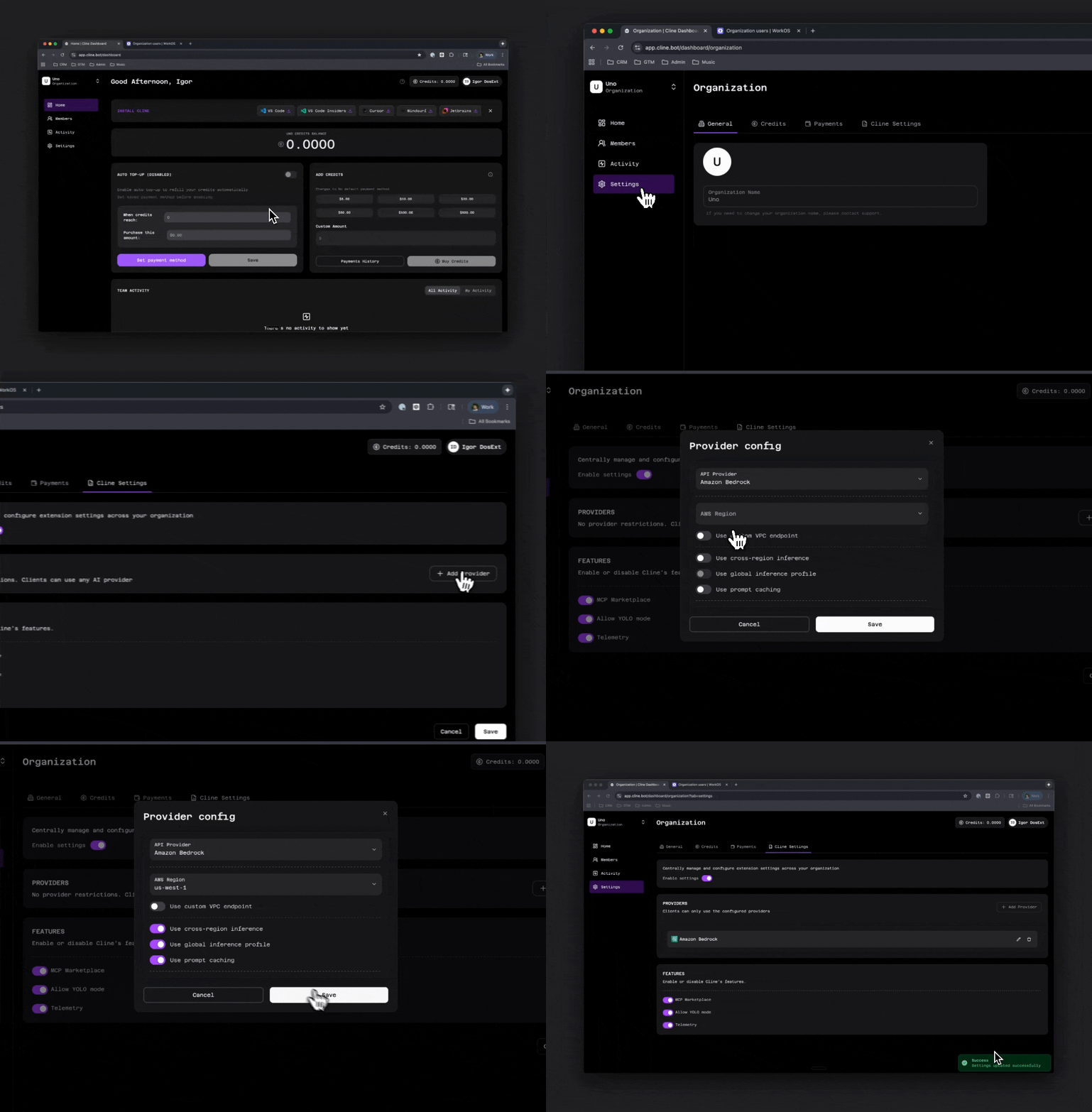 ## Configuration Steps
**Access Cline Settings**
Navigate to [app.cline.bot](https://app.cline.bot) and sign in with your administrator account. Go to **Settings → Cline Settings**.
## Configuration Steps
**Access Cline Settings**
Navigate to [app.cline.bot](https://app.cline.bot) and sign in with your administrator account. Go to **Settings → Cline Settings**.
You should see the provider configuration options if you have the correct admin access level.
**Enable Remote Provider Configuration**
Toggle on **Enable settings** to reveal the remote provider configuration options. This allows you to enforce provider settings across your organization.
**Select AWS Bedrock as the API Provider**
Open the **API Provider** dropdown menu and select **Amazon Bedrock**. This will open the Bedrock configuration panel where you'll configure all your organization-wide settings.
**Configure Bedrock Settings**
The configuration panel includes several settings that control how Bedrock works for your organization. Configure what you need:
Region (required)
Enter your preferred AWS region like `us-west-2` or `us-east-1`. This region will be enforced for all organization members.
[View AWS Global Infrastructure](https://aws.amazon.com/about-aws/global-infrastructure/regions_az/)
For most organizations, `us-east-1` or `us-west-2` are recommended as they have the best model availability.
Custom VPC Endpoint (optional)
If your organization uses a private VPC endpoint for Bedrock, specify it here to ensure all API calls go through your network infrastructure.
[Learn more about AWS PrivateLink](https://docs.aws.amazon.com/vpc/latest/userguide/endpoint-services-overview.html)
Cross-region Inference (optional)
Enable this to let Bedrock automatically route requests to other regions when your primary region has capacity constraints. Useful for maintaining availability during high-demand periods.
[Learn more about Inference Profiles](https://docs.aws.amazon.com/bedrock/latest/userguide/inference-profiles-support.html)
Global Inference Profile (optional)
Turn this on to use AWS's global inference routing, which automatically directs requests to the optimal region based on availability and latency.
Prompt Caching (optional)
Enable prompt caching to reduce costs and latency. Bedrock caches portions of prompts that remain consistent across requests, making repeated interactions faster and cheaper.
[Learn more about Prompt Caching](https://docs.aws.amazon.com/bedrock/latest/userguide/prompt-caching.html)
**Save Configuration**
After configuring your settings, close the provider configuration panel and click **Save** on the settings page to persist your changes.
Once saved, all organization members signed into the Cline extension will automatically use AWS Bedrock with your configured settings. In the VS Code and JetBrains extensions, they can't select other providers or switch to their personal Cline accounts.
In the VS Code and JetBrains extensions, members can't switch to personal Cline accounts or other organizations while remote configuration is enabled. Cline Desktop and the CLI don't enforce these restrictions. See [which products support each control](https://funcoding.ai/agents/cline/enterprise-solutions/configuration/remote-configuration/overview/#which-products-support-each-control).
## Verification
To verify the configuration:
1. Check that the provider shows as "Amazon Bedrock" in the Enabled provider field
2. Confirm the settings persist after refreshing the page
3. Test with a member account to ensure they see only Bedrock as a provider
## Troubleshooting
**Members don't see the configured provider**
Ensure you clicked Save after closing the configuration panel. Verify the member account belongs to the correct organization.
**Configuration changes don't persist**
Make sure to click the Save button on the main settings page, not just close the configuration panel.
**Need to change regions later**
You can update the region at any time. Members will need to ensure their local AWS credentials have access to the new region. For more information, refer to the [AWS Bedrock Documentation](https://docs.aws.amazon.com/bedrock/latest/userguide/what-is-bedrock.html).
For further details, consult the [AWS Bedrock Documentation](https://docs.aws.amazon.com/bedrock/latest/userguide/what-is-bedrock.html) and coordinate with your internal cloud team.