# Markdown Viewer
> Open Markdown files in your terminal, run shell commands, and view rendered Mermaid diagrams.
- 网址:https://funcoding.ai/agents/warp/terminal/more-features/markdown-viewer/
- 来源:Warp 官方文档原文(英文),MIT 许可,同步于 2026-10-11
- 官方原文:https://docs.warp.dev/terminal/more-features/markdown-viewer/
---
Warp can be used for both editing and viewing rendered Markdown files in a [split pane](https://funcoding.ai/agents/warp/terminal/windows/split-panes/). Any local file with the `.md` or `.markdown` extension is treated as a Markdown file. Remote files are currently not supported. Turning on **Settings** > **Code** > **Editor and Code Review** > **Open Markdown files in Warp's Markdown Viewer by default** will make the Markdown viewer default, otherwise Markdown files will open in Warp's editor.
### Opening a file link within a block
**macOS**
For any link to a Markdown file within a block, you can open the file in Warp by `⌘`-clicking on the link, from the link tooltip, or the right-click context menu on the link.
**Windows**
For any link to a Markdown file within a block, you can open the file in Warp by `Ctrl`-clicking on the link, from the link tooltip, or the right-click context menu on the link.
**Linux**
For any link to a Markdown file within a block, you can open the file in Warp by `Ctrl`-clicking on the link, from the link tooltip, or the right-click context menu on the link.
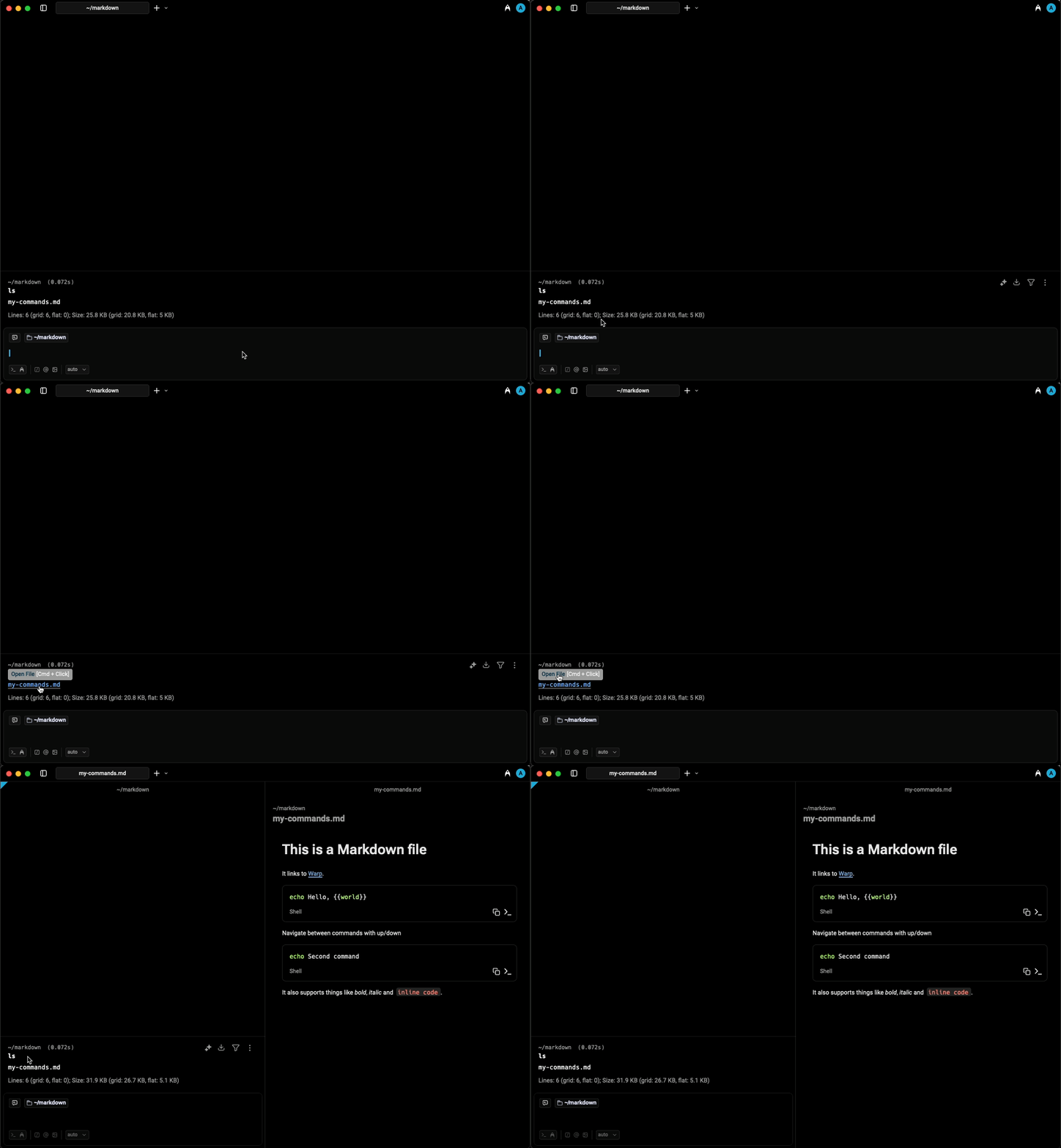
Opening a Markdown file via link tooltip.
### Markdown-viewing commands
If you run a Markdown-viewing command like `cat myfile.md`, Warp will show a banner with a button to open the Markdown file.
The following commands are considered Markdown viewers:
* `cat`
* `glow`
* `less`
### Opening a Markdown file from Finder
From Finder, you can open a Markdown file in Warp from the “Open With” menu that appears when right-clicking on the file.
### Toggling between editor and viewer
You can toggle between the Markdown editor and viewer via the pane overflow menu.
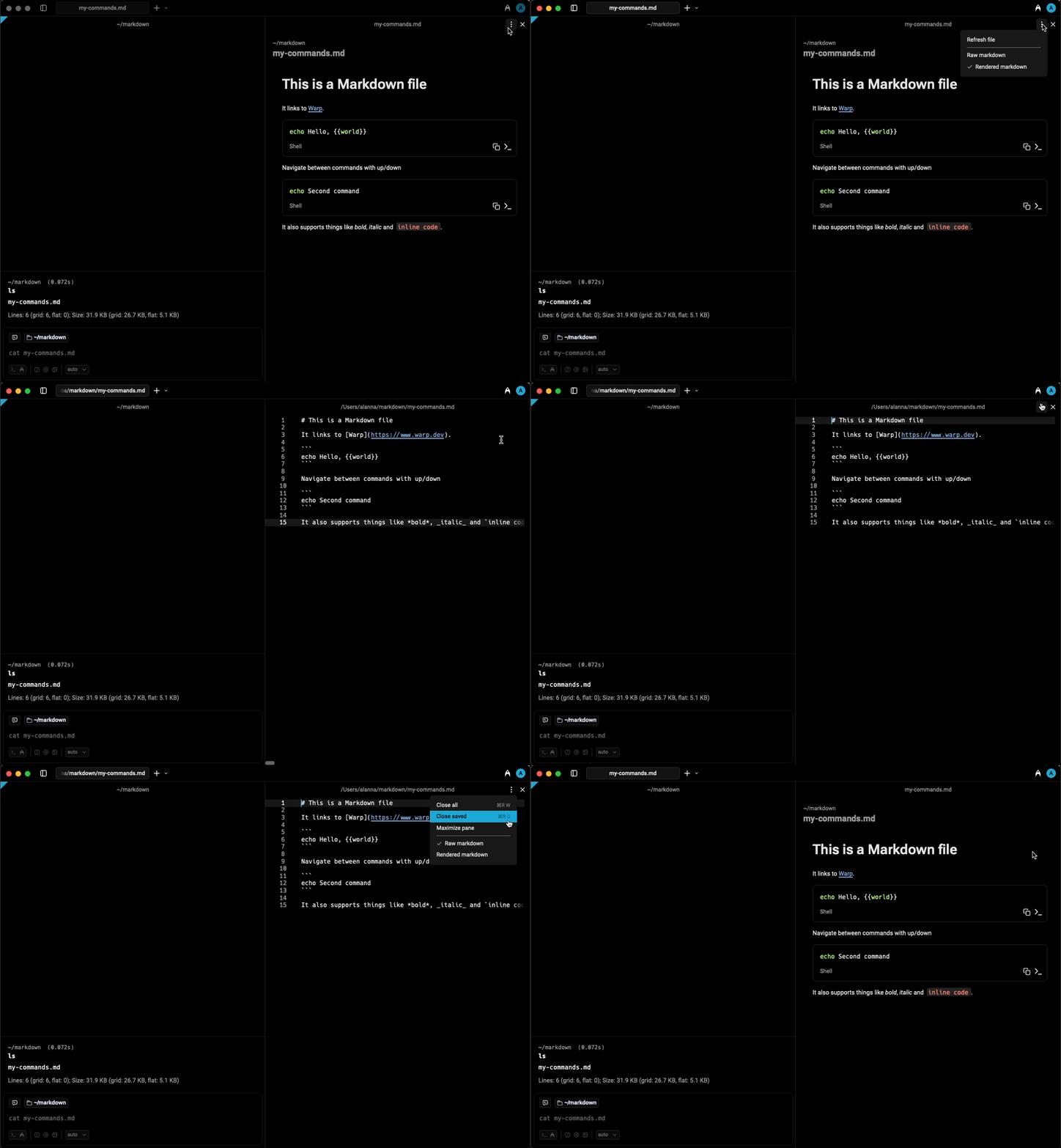
Toggling between editor and viewer.
## Shell commands in Markdown files
Warp can run shell commands from Markdown code blocks in your active terminal session. Click the run icon `>_` to insert a command into the terminal input.
The shell command must be in a code block with three backticks ` ``` ` and not inline code for Warp to treat the code like a runnable command.
Markdown shell blocks also support keyboard navigation. There are two ways to enter the keyboard navigation mode:
**macOS**
* Clicking on a shell block.
* Pressing `⌘+↑` or `⌘+↓`.
Once a shell block is selected, press `⌘+Enter` to insert it into the terminal input. You can also use `↑`, `↓`, `⌘+↑`, and `⌘+↓` to navigate between shell blocks. While the Markdown file is focused, press `⌘+L` to switch focus back to the terminal without inserting a command.
**Windows**
* Clicking on a shell block.
* Pressing `Ctrl+↑` or `Ctrl+↓`.
Once a shell block is selected, press `Ctrl+Enter` to insert it into the terminal input. You can also use `↑`, `↓`, `Ctrl+↑`, and `Ctrl+↓` to navigate between shell blocks. While the Markdown file is focused, press `Ctrl+Shift+L` to switch focus back to the terminal without inserting a command.
**Linux**
* Clicking on a shell block.
* Pressing `Ctrl+↑` or `Ctrl+↓`.
Once a shell block is selected, press `Ctrl+Enter` to insert it into the terminal input. You can also use `↑`, `↓`, `Ctrl+↑`, and `Ctrl+↓` to navigate between shell blocks. While the Markdown file is focused, press `Ctrl+Shift+L` to switch focus back to the terminal without inserting a command.
If the command contains any arguments using the curly brace `{{param}}` syntax, they will be treated as Workflow arguments. Learn more about [Workflows](https://funcoding.ai/agents/warp/knowledge-and-collaboration/warp-drive/workflows/).
In addition, all shell and code blocks have a copy button to quickly copy the block's text to the clipboard.
Code blocks without a set language, or one of the following languages, are treated as shell commands: `sh`, `shell`, `bash`, `fish`, `zsh`, `warp-runnable-command`.
## Mermaid diagrams
Warp renders [Mermaid](https://mermaid.js.org/) diagrams in the markdown viewer. Add a fenced code block with the `mermaid` language tag and Warp converts it to a rendered SVG diagram automatically.
````
```mermaid
graph LR
A[Start] --> B[End]
```
````

A Mermaid diagram rendered in the Markdown Viewer.
### Switching between raw and rendered
Each Mermaid block includes a **Raw** and **Rendered** toggle. Use it to switch between the rendered diagram and the original Mermaid source without leaving the viewer.