Reviewing user activity data for GitHub Copilot in your organization
Review GitHub Copilot usage in your organization to make informed decisions about seat assignment.
-
In the upper-right corner of GitHub, click your profile picture, then click organization Organizations.
-
Select an organization by clicking on it.
-
Under your organization name, click gear Settings. If you cannot see the "Settings" tab, select the More dropdown menu, then click Settings.

-
In the sidebar, under "Code, planning, and automation", click copilot Copilot, and then click Access.
-
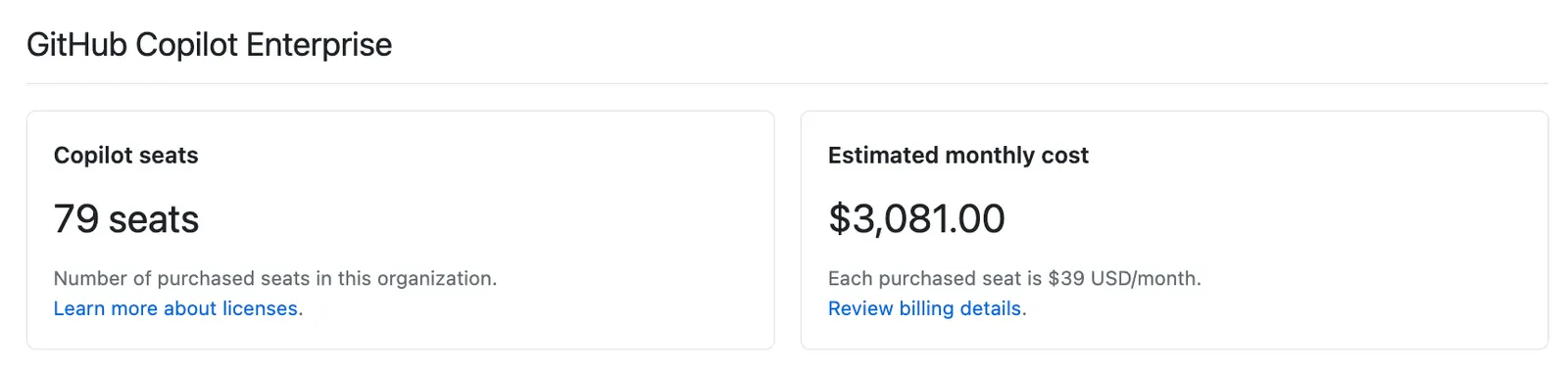
At the top of the page, under "GitHub Copilot," you can see an overview of your organization's GitHub Copilot usage. You can see the number seats assigned through your Copilot Enterprise or Copilot Business plan, and the estimated monthly cost.
-
Alternatively, under "Access management," you can use the Sort options to sort the list of users by when they last used GitHub Copilot.
-
For more detailed information, you can retrieve the Activity report. GitHub generates a report for you, which you can download as a CSV file.
Using the API to retrieve assignment information
You can use GitHub's REST API to get details about the assignment of GitHub Copilot seats in your organization. See Get Copilot seat information and settings for an organization, List all Copilot seat assignments for an organization, and Get Copilot seat assignment details for a user.
Troubleshooting last_activity_at data
If you believe a user's last_activity_at date should be more recent than shown in the CSV or API report, wait 24 hours and check again. If their recent Copilot usage is still not reflected in their last_activity_at date, have the user check that telemetry is enabled in their IDE settings.
For more information about this property and other data in the activity report, see AUTOTITLE.