Using Copilot cloud agent on GitHub Mobile
Start and track Copilot cloud agent sessions from the GitHub Mobile app.
Starting a session
-
In GitHub Mobile, tap the Copilot icon in the bottom right corner of the screen, then tap The Agents icon New Session.
-
Using the dropdown menu in the prompt field, select the repository you want Copilot to work in.
-
Enter a prompt describing your request.
For example:
Implement a user friendly message for common errors.If you want Copilot to open a pull request, you can ask in your prompt, for example
Open a pull request to implement a user friendly message for common errors. -
Optionally, select a base branch for Copilot's changes. Copilot will create a new branch based on this branch.
-
Optionally, select a custom agent with specialized behavior and tools from the dropdown menu. For more information, see AUTOTITLE.
-
Optionally, you can use the dropdown menu to select the model that Copilot will use. If the selected model supports configurable reasoning, you can also use the dropdown menu to select the reasoning level. For more information, see AUTOTITLE.
-
Click the submit button.
Copilot will start a new session, work on the task, and push any code changes.
Assigning an issue to Copilot
- In GitHub Mobile, navigate to the repository that contains the issue you want to assign to Copilot.
- Click Issues.
- Open the issue that you want to assign to Copilot.
- Tap the information icon.
- Beside "Assignees", tap Edit.
- Beside "Copilot", click the plus sign.
- Click Done.
Tracking your sessions
You can see a list of your running and past pull requests generated by agents in GitHub Mobile.
-
In the "Agents" section on the GitHub Mobile Home page, tap Agent Tasks.
A list of the currently open pull requests, that you asked Copilot to generate, is displayed.
-
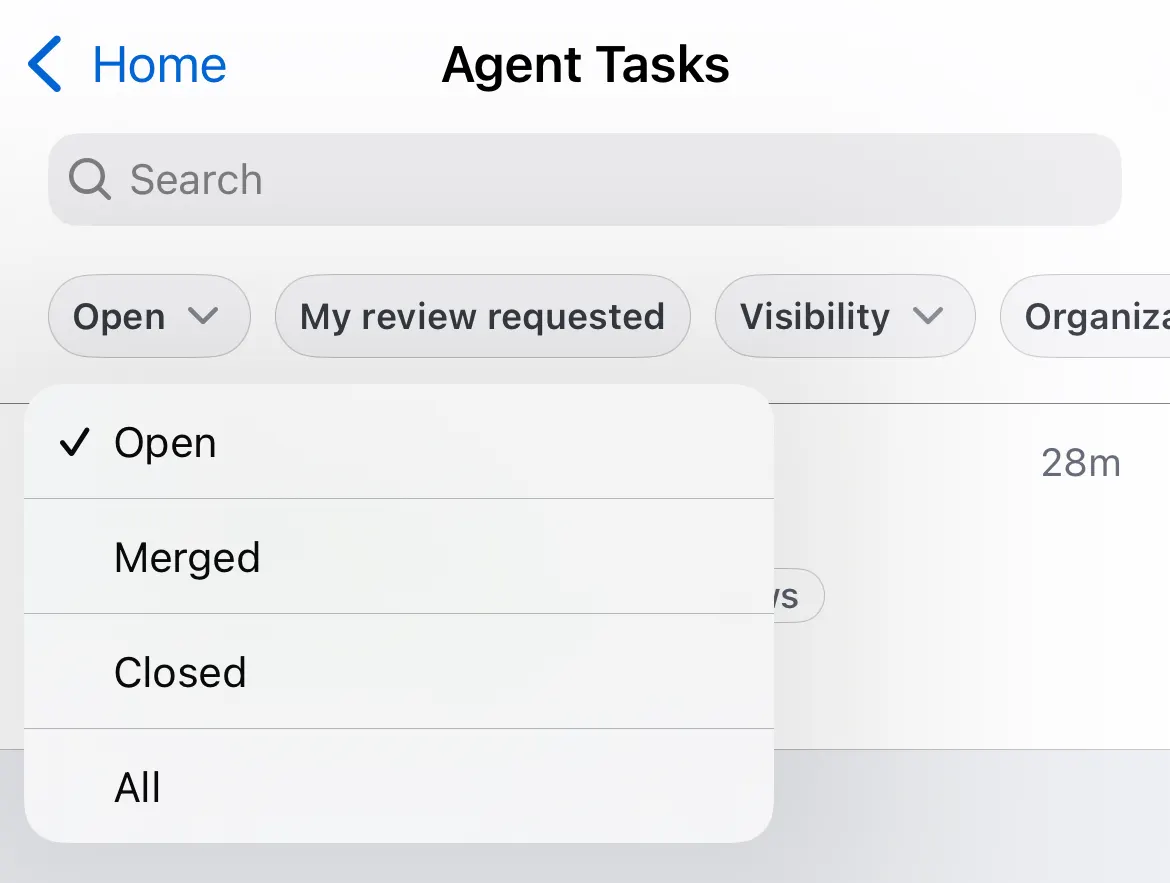
Use the buttons at the top of the list to filter the list of pull requests.
For example, to show only merged tasks, tap Open and then, in the dropdown, tap Merged.