Authentication
Configure Kilo Code and connect to your AI providers
When you install Kilo Code, you'll be prompted to sign in or create a free account. This automatically configures everything you need to get started. You can sign in with your email address, ChatGPT, Google, Apple, GitHub, GitLab, Discord, LinkedIn, or Anaconda, or through your organization's single sign-on.
Quick Start with Kilo Account
VS Code
The extension prompts you to sign in when you first open Kilo Code in VS Code. Click Sign In and complete the browser-based flow. Sign-in applies across extension surfaces, including the sidebar and Agent Manager.
CLI
Run the auth command and follow the browser-based sign-in flow:
kilo auth loginThis may open your browser to complete authentication. Once signed in, your credentials are stored locally and used for all future sessions.
To verify your auth status:
kilo auth listSign in with ChatGPT
You can use ChatGPT to sign in to Kilo, connect your subscription for model requests, or both. These are separate options and neither requires an OpenAI API key. See using ChatGPT with Kilo for setup and billing details.
Add Credits
Add credits to your account, or sign up for Kilo Pass.
Kilo Gateway API Key
If you're using the Kilo AI Gateway outside of the Kilo Code extension (for example, with the Vercel AI SDK or OpenAI SDK), you'll need an API key:
- Go to app.kilo.ai
- Go to Your Profile on your personal account (not in an organization)
- Scroll to the bottom of the page
- Copy your API key
Using Another API Provider
If you prefer to use your own API key or existing subscription, Kilo Code supports over 30 providers. Here are some popular options to get started:
| Provider | Best For | API Key Required |
|---|---|---|
| ChatGPT Plus/Pro | Use your existing subscription | No |
| OpenRouter | Access multiple models with one key | Yes |
| Anthropic | Direct access to Claude models | Yes |
| OpenAI | Access to GPT models | Yes |
Many More Providers Available
These are just a few examples! Kilo Code supports many more providers including Google Gemini, DeepSeek, Mistral, Ollama (for local models), AWS Bedrock, Google Vertex, and more. See the complete list at AI Providers.
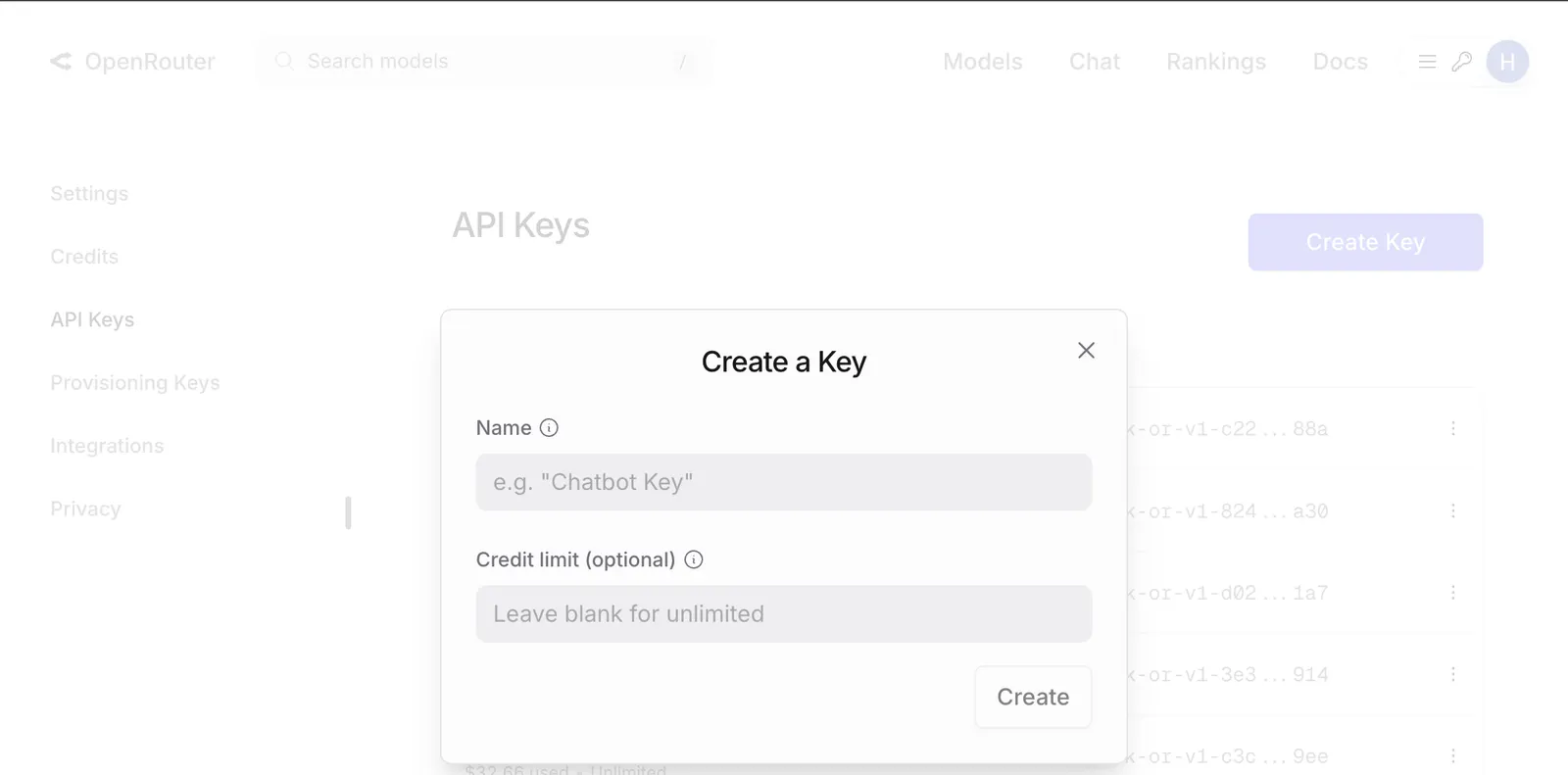
OpenRouter
- Go to openrouter.ai and sign in
- Navigate to API keys and create a new key
- Copy your API key
Anthropic
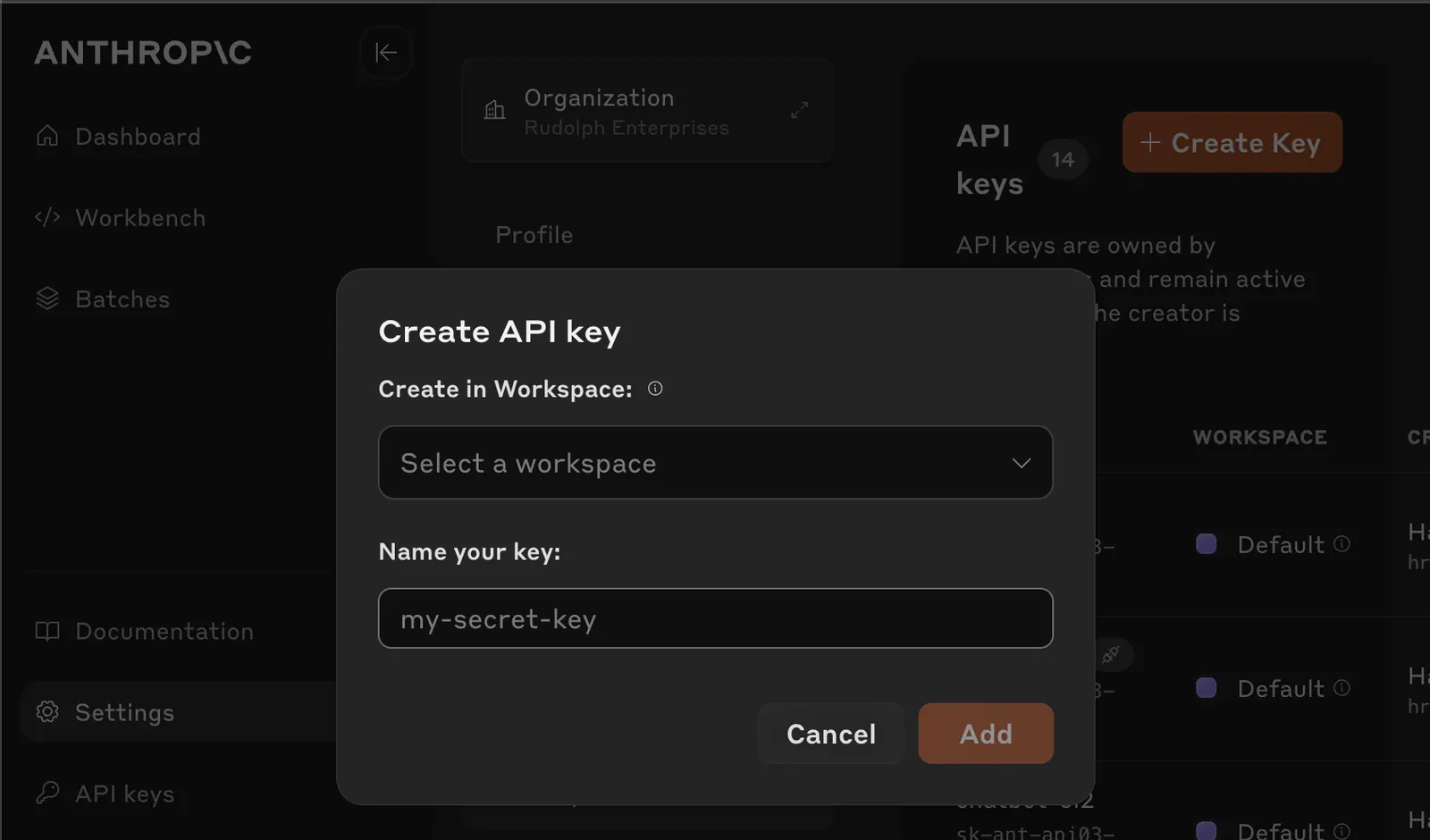
- Go to console.anthropic.com and sign in
- Navigate to API keys and create a new key
- Copy your API key immediately—it won't be shown again
OpenAI
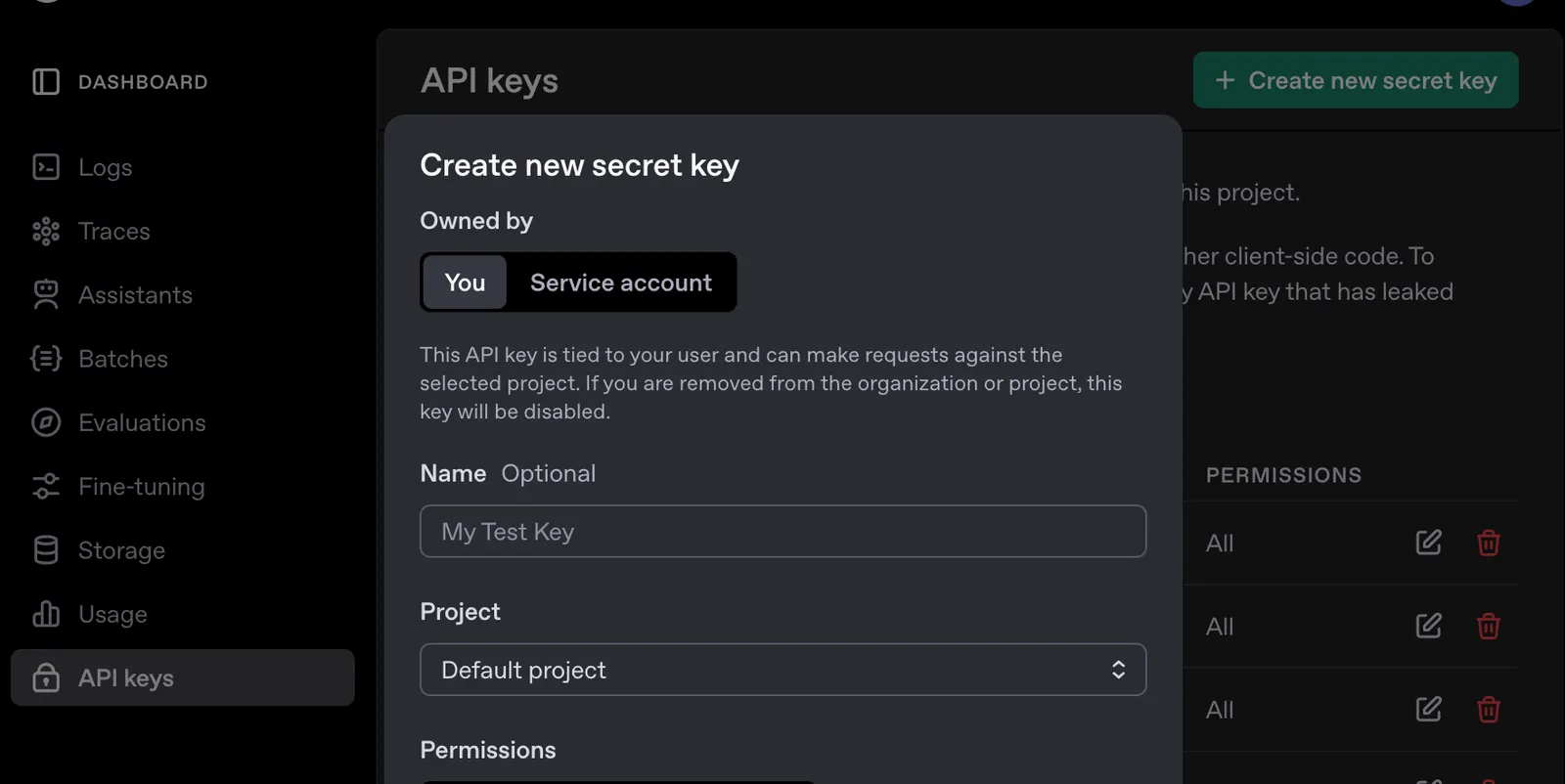
- Go to platform.openai.com and sign in
- Navigate to API keys and create a new key
- Copy your API key immediately—it won't be shown again
Configuring Your Provider
VS Code
- Open Kilo Code in VS Code
- Click the gear icon () in the extension UI to open Settings
- Go to the Providers tab
- Select your provider and enter your API key
- Choose your model
These settings apply across the extension, including the sidebar and Agent Manager. Agent Manager does not need separate provider or Kilo CLI authentication setup.
CLI
Set the API key as an environment variable:
export ANTHROPIC_API_KEY="sk-ant-..."Or use kilo auth login for providers that support OAuth, such as GitHub Copilot or ChatGPT Plus/Pro.
To set a default model:
{
  "model": "anthropic/claude-sonnet-4-20250514",
}
Need Help?
Reach out to our support team or join our Discord community.