Granting users access to GitHub Copilot in your enterprise
Enable Copilot for entire organizations or grant access directly to specific users.
There are two main ways to grant access to Copilot in an enterprise:
- Assign licenses directly to users or teams in the enterprise. This approach simplifies license management at scale and provides the option of granting Copilot licenses to users who don't consume a GitHub Enterprise license. This approach is currently only available for Copilot Business licenses.
- Enable Copilot for organizations. This approach allows you to choose Copilot Business or Copilot Enterprise for individual organizations and give organization owners control to grant licenses to the users who need them most.
Assigning licenses to users or teams
You can assign Copilot Business licenses directly to users or enterprise teams.
When you assign licenses to an enterprise team, users receive or lose access to Copilot when they are added or removed from the team. If you use Enterprise Managed Users, you can sync the team with an identity provider (IdP) group and manage licensing from your IdP.
Prerequisites
- Set the Policies for enterprise-assigned users policy to define a default setting for these users when other enterprise policies are set to "No policy". See AUTOTITLE.
- If you want to assign licenses to users who are not already in your enterprise, you must first invite the users (personal accounts) or provision them from your identity provider (Enterprise Managed Users). For personal accounts, see AUTOTITLE.
- If you want to assign a license to an enterprise team, you must create the team first. See AUTOTITLE.
Assigning licenses
-
Navigate to your enterprise. For example, from the Enterprises page on GitHub.com.
-
At the top of the page, click credit-card Billing and licensing.
-
In the left sidebar, click Licensing.
-
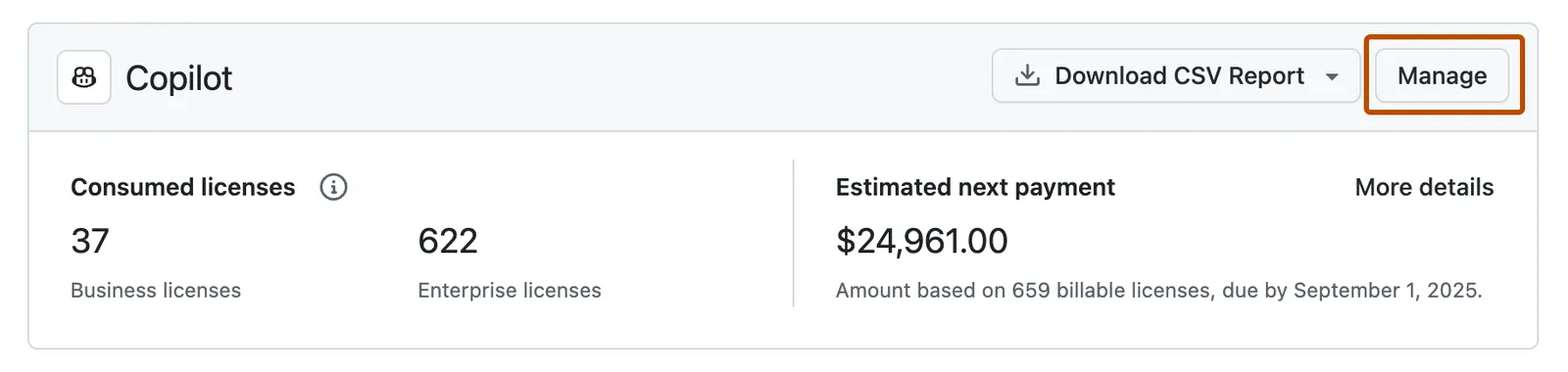
Next to "Copilot", click Manage.
-
Click the All members or Enterprise Teams tab.
-
Click Assign licenses.
-
Search for users or teams, then click Add licenses.
-
Optionally, disable Copilot for organizations to prevent organization owners from assigning licenses. See AUTOTITLE.
Enabling Copilot for organizations
If your enterprise has a Copilot Enterprise plan, you can assign licenses for either Copilot Enterprise or Copilot Business.
-
Navigate to your enterprise. For example, from the Enterprises page on GitHub.com.
-
At the top of the page, click credit-card Billing and licensing.
-
In the "Billing and licensing" sidebar, click law Licensing.
-
In the "Copilot" section, click Manage.
-
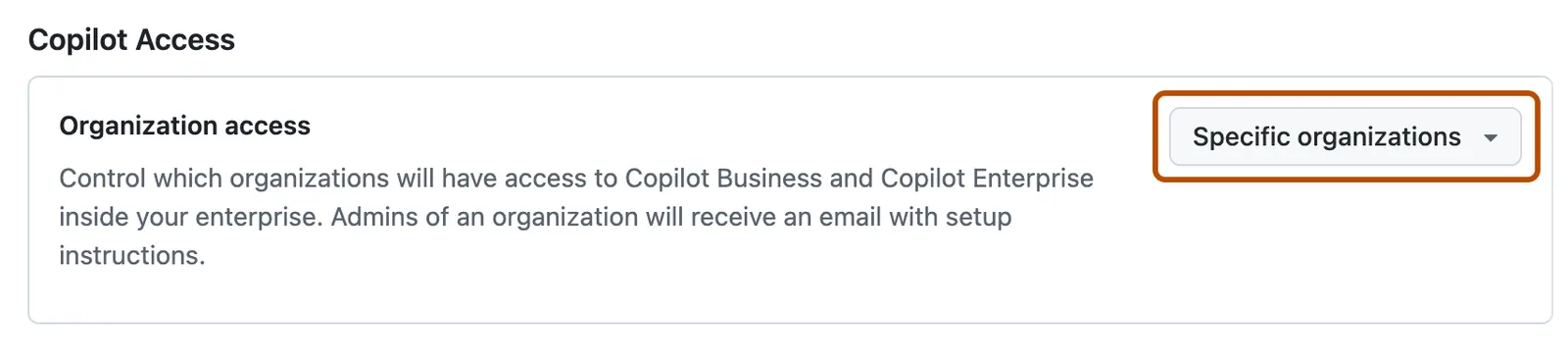
Next to "Organization access", choose whether to enable Copilot for all organizations or allow for specific organizations.
-
If you selected Allow for specific organizations:
- Click the organization Organizations tab.
- Locate the organization for which you want to enable Copilot.
- To the right of the organization name, select the Copilot dropdown menu.
- If your enterprise has a Copilot Business plan, click Enabled.
- If your enterprise has a Copilot Enterprise plan, click either Copilot: Enterprise or Copilot: Business to assign a specific Copilot plan to the organization.
After you've enabled Copilot for an organization in your enterprise, owners of the organization can grant access to some or all members of the organization. See AUTOTITLE.