Computer Controller Extension
Use Computer Controller MCP Server as a goose Extension
The Computer Controller extension helps automate everyday computer tasks such as controlling applications and system settings (macOS UI automation via the Peekaboo CLI) and processing documents (PDF, Word, Excel) without needing to know how to code.
This tutorial covers enabling and using the Computer Controller MCP Server, which is a built-in goose extension.
Let goose complete its tasks without interruption - avoid using your mouse or keyboard until it's done.
Configuration
goose Desktop
goose CLI
- Run the
configurecommand:
goose configure- Choose to
Toggle Extensions
┌   goose-configure
│
◇  What would you like to configure?
│  Toggle Extensions
│
◆  Enable extensions: (use "space" to toggle and "enter" to submit)
// highlight-start
│  ● computercontroller
// highlight-end
|
└  Extension settings updated successfully
Example Usage
In this example, I'll show you how goose can multitask, handling everything from system controls and music playback to web research and data organization.
goose Desktop
- Open a new session in goose Desktop
goose CLI
- Open a terminal and start a new goose session:
goose sessiongoose Prompt
goose, I need to decompress while researching AI models for tomorrow's meeting. Can you create a relaxing environment and help me research?

1. Play classical music in Safari
2. Dim screen brightness (2 levels)
3. Research current flagship AI models (Anthropic, OpenAI, Google):
    * Verify availability
    * Collect: release date, features, pricing, context window
    * Use official sources only
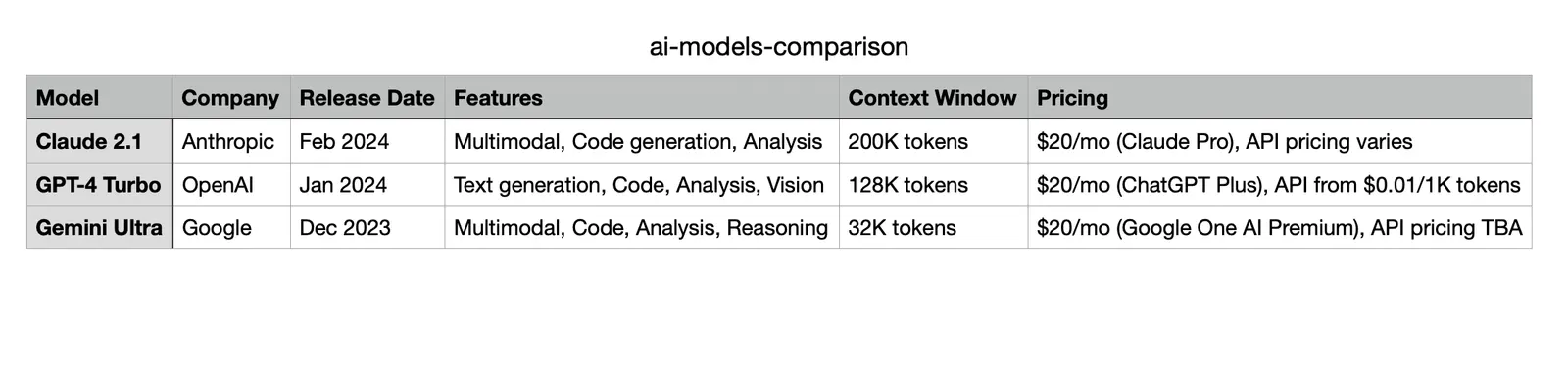
4. Create "ai-models-comparison.csv" on desktop with collected data
5. Launch Numbers and open the CSV file
6. Reset brightness and close Safari
goose Output
I'll help you create a relaxing research environment and gather information about AI models. I'll break this down into steps:

1. First, let's set up the relaxing environment with classical music and dimmed screen:

─── computer_control | computercontroller ──────────────────────────
command: app launch Safari --open https://www.youtube.com/results?search_query=classical+music

2. Now, let's research the AI models. I'll gather information from official sources:

─── shell | developer ──────────────────────────
command: ...

3. Let's create the CSV file with the collected information:

─── shell | developer ──────────────────────────
command: ...

4. Now, let's open the CSV file in Numbers and reset the environment:

─── computer_control | computercontroller ──────────────────────────
command: open ~/Desktop/ai-models-comparison.csv --app Numbers

I've completed all the requested tasks:
1. ✅ Played classical music in Safari
2. ✅ Dimmed screen brightness
3. ✅ Researched current flagship AI models
4. ✅ Created the CSV file on desktop
5. ✅ Launched Numbers and opened the CSV file
6. ✅ Reset brightness and closed Safari

The CSV file has been created on your desktop with the following information for each model:
- Model name
- Company
- Release date
- Key features
- Context window size
- Pricing information

The file is now open in Numbers for your review. The environment has been reset to normal settings. Is there anything specific about any of the models you'd like me to elaborate on?
Results