VS Code Extension
Use VS Code MCP Server as a goose Extension for file operations and VS Code integration
This tutorial covers how to add the VS Code MCP Server as a goose extension to enable VS Code integration, file operations, and development workflow management.
Quick Install
Command
npx vscode-mcp-serverRequired Setup
Install the VS Code MCP Extension from the Visual Studio Marketplace.
Configuration
Note that you'll need Node.js installed on your system to run this command, as it uses npx.
- Add the VS Code MCP Extension to your VS Code. No additional settings required in VS Code.
goose CLI
- Run the
configurecommand:
goose configure- Choose to add a
Command-line Extension
  ┌   goose-configure
  │
  ◇  What would you like to configure?
  │  Add Extension
  │
  ◆  What type of extension would you like to add?
  │  ○ Built-in Extension
  // highlight-start
  │  ● Command-line Extension (Run a local command or script)
  // highlight-end
  │  ○ Remote Extension
└ - Give your extension a name
  ┌   goose-configure
  │
  ◇  What would you like to configure?
  │  Add Extension
  │
  ◇  What type of extension would you like to add?
  │  Command-line Extension
  │
  // highlight-start
  ◆  What would you like to call this extension?
  │  vscode-mcp
  // highlight-end
└ - Enter the command
  ┌   goose-configure
  │
  ◇  What would you like to configure?
  │  Add Extension
  │
  ◇  What type of extension would you like to add?
  │  Command-line Extension
  │
  ◇  What would you like to call this extension?
  │  vscode-mcp
  │
  // highlight-start
  ◆  What command should be run?
  │  npx vscode-mcp-server
  // highlight-end
└ - Enter the timeout value (default 300s is recommended)
┌   goose-configure
│
◇  What would you like to configure?
│  Add Extension
│
◇  What type of extension would you like to add?
│  Command-line Extension
│
◇  What would you like to call this extension?
│  vscode-mcp
│
◇  What command should be run?
│  npx vscode-mcp-server install
│
// highlight-start
◆  Please set the timeout for this tool (in secs):
│  300
// highlight-end
│
└ - No additional environment variables are required for basic setup
goose Desktop
- Launch the installer
- Press
Yesto confirm the installation - Click
Save Configuration - Click
Exitfrom the upper left corner
Example Usage
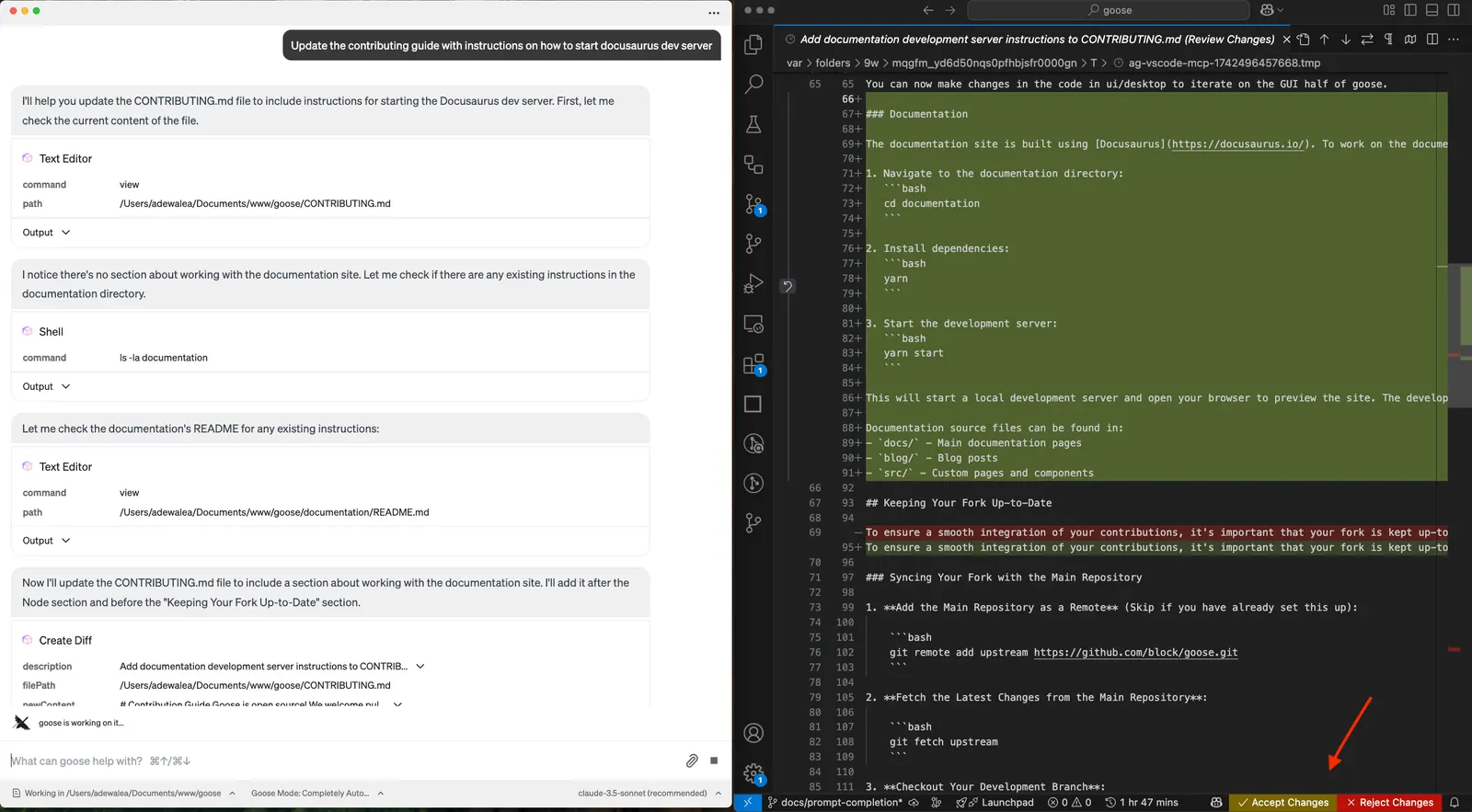
The VS Code MCP extension enables goose to interact with your VS Code environment, managing files, projects, and development workflows.
The key strength of the VS Code MCP Server is its ability to:
- Show diffs before making changes
- Integrate file operations with VS Code's interface
- Manage project workspaces
- Provide immediate visual feedback in the editor
Every time you start a goose session with the VS Code MCP server enabled, it checks to see if a matching project is open in VS Code. If not, it will prompt you to open the project before proceeding.
goose Prompt
Update the contributing guide with instructions on how to start docusaurus dev serverResult