
tldraw
Draw and visually collaborate with your agents on tldraw's canvas.
TLtldraw/tldraw51k105 new stars in the last 7 days
Work a running OrcaSlicer with AI: slice, tune, and understand what each setting costs



Let Claude work alongside you in a real, running OrcaSlicer. It loads models, arranges the plate, tunes settings, slices, and reads the result back as numbers you can question: which feature ate the print time, what a setting actually does, whether a profile breaks your printer's physics. Every change lands in the GUI while you watch, so the slicer stays yours and you get better at it as you go.
This package is an MCP server: it bundles no model. It talks to OrcaSlicer, at an address you configure (localhost by default), and, when you use the printer tools, makes read-only requests to your 3D printer. It sends the printer no commands and uploads nothing to it. The model comes from your MCP client. If that client uses a hosted one, your conversation goes there as any chat does; your models, profiles, and gcode stay on the machine running the slicer. Point the client at a local model and nothing goes to a hosted service.
An offline settings reference ships with the package, carrying the authoritative label, tooltip, type, range, enum, and default for each key, so describe_setting, search_settings, and compare_settings answer from OrcaSlicer's own source instead of guessing. consult composes curated slicing knowledge and your saved notes by topic, symptom, or goal.
check_profile_physics is a deterministic gate. It overlays proposed changes on the live config, runs flow, temperature, geometry, and cooling math, then returns ok, warnings, or blocked. Accelerations your printer cannot reach and speeds past the flow ceiling get caught before they reach a print.
Read and write any of roughly 800 OrcaSlicer settings on the live config, for the whole plate or scoped narrower: get_config, set_config, find_config_keys, set_layer_height, set_height_range for a band of layers, and set_object_config for one object's overrides.
On a multi-filament setup, per-filament keys are read merged across every loaded slot but written one preset at a time, and selecting a preset discards unsaved overrides in every group. So make filament edits first and print edits second; docs/order-of-operations.md explains why and gives the sequence.
list_presets, select_preset, get_preset_config, edit_preset, save_preset, rename_preset, delete_preset. select_preset discards unsaved overrides in every group, not only the one switched; see docs/order-of-operations.md.
slice, slice_and_wait, apply_and_slice, cancel_slice, get_slice_status, get_slice_warnings, get_gcode.
get_slice_breakdown returns per-feature time, filament, and flow. OrcaSlicer shows the same information in the legend beside its preview, sized for a screen; this returns it as numbers an assistant can compare and act on:
role                    time      share   filament   mean flow
inner_wall              5m 41s    30.8%     6.43 g    16.0 mm3/s
outer_wall              3m 19s    18.0%     3.20 g    13.6 mm3/s
sparse_infill           3m 07s    17.0%     3.57 g    17.0 mm3/s
internal_solid_infill   2m 01s    11.0%     1.72 g    11.8 mm3/s
bridge                     52s     4.7%     0.26 g     4.4 mm3/s
support_interface          36s     3.2%     0.52 g    12.3 mm3/s
overhang_perimeter         28s     2.5%     0.13 g     3.7 mm3/s
internal_bridge            21s     1.9%     0.45 g    19.9 mm3/s
top_surface                19s     1.7%     0.29 g    12.5 mm3/s
brim                       12s     1.1%     0.21 g    14.7 mm3/s
bottom_surface              7s     0.7%     0.10 g    11.8 mm3/s
                        18m 24s            16.89 g
It answers which feature is eating the time without slicing repeatedly to find out. A prediction_check rides along and flags any role where the profile's requested speed got throttled at the flow ceiling.
compare_slices slices the current plate under several named variants and returns one comparison, so "what does layer height actually cost me?" is a single question rather than four manual slices. It applies each variant over your original config, restores it when done, and hands back a verdict plus a table with every delta already worked out:
Recommended: 0.4mm - fastest with no warnings.

variant     time      filament   vs 0.4mm (baseline)
0.3mm       8h 10m    41.0 g      +1h 30m (+22%), -7.0 g (-15%)
0.4mm  *    6h 40m    48.0 g      baseline
0.5mm       5h 20m    53.4 g      -1h 20m (-20%), +5.4 g (+11%)
0.6mm       4h 35m    57.1 g      -2h 05m (-31%), +9.1 g (+19%)  thin-wall warning
It only crowns a winner when one variant genuinely beats the rest on time, filament, and warnings; when they trade off, it names the fastest, the lightest, and where the warnings landed, and leaves the choice in front of you. Pass detail=True for the per-feature split of each variant.
load_model (.stl, .obj, .3mf, plus .step and .stp on fork v2.3.2-mcp.3 and later), list_objects with each object's world-space bounding box and an on_plate flag, transform_object, duplicate_object, delete_object, arrange_plate, auto_orient, check_placement, diagnose_plate, get_job_status.
list_plates, add_plate, select_plate, delete_plate and move_object_to_plate build a multi-plate project the way the toolbar does: one part per plate, each sliced on its own. Slicing, G-code, renders and job status always act on the current plate, so select a plate before you slice it. list_objects reports the plate each object sits on. Keep arrange_plate away from a layout like this: OrcaSlicer's arrange packs every unlocked plate together again. These need fork v2.4.2-mcp.13 or later.
render_plate hands back a PNG, so the assistant can look instead of inferring from coordinates. A rotation reads instantly as a picture and barely at all as three Euler angles. Seven camera angles cover iso, top, front, left, right, rear, and bottom. Use frame="plate" to stand back for the whole bed, or frame="object" to lean in on the part. Requires fork v2.3.2-mcp.4 or later.
view="editor" | view="preview" |
|---|---|
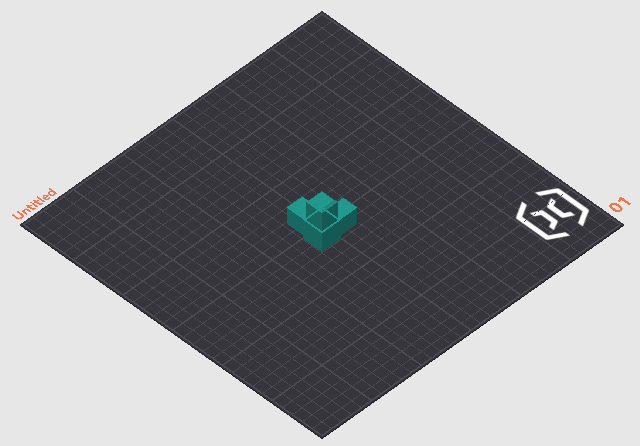 | 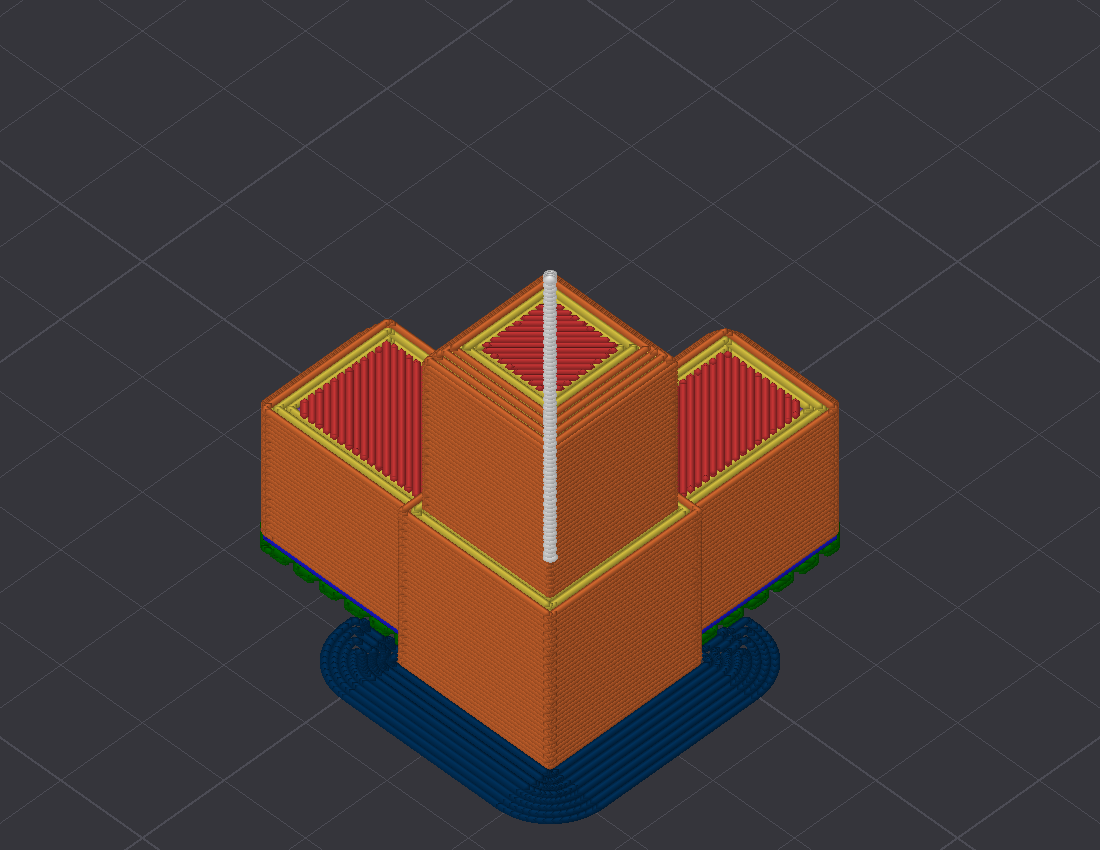 |
| Your models on the bed. Answers orientation, plate contact, and first-layer footprint. | Sliced toolpaths coloured by feature role, so support placement is plain to see. |
describe_plate answers the same questions as numbers and one sentence per object, computed from the sliced G-code: how the part stands (flat, tilted, or on an edge or corner, from first-layer contact against its widest layer), the first-layer footprint as islands, where overhang extrusions concentrate by height band, where support stands and where it touches the part, and which side the seams sit on, checked against seam_position. It exists because an assistant reads a sentence more reliably than a picture. Copies of an object are aggregated; the islands still show each copy's contact patch. On a plate of three tilted bracket copies it reads: "bracket.stl (3 copies) stands on an edge or corner: first-layer contact is 5% of its widest layer, in 3 islands of about 50 mm2 each. Overhang extrusions concentrate at Z 0 to 10 mm. Support is present from Z 0.4 to 56.8 mm, standing in 3 places and touching the part in 7 zones. Seams align on the +Y side (91%), matching seam_position=back."
get_status and watch_events report what the slicer is doing now. remember persists machine, user, and project facts for later sessions, as plain local files in ~/.orcaslicer-mcp/notes/, relocatable with ORCA_MCP_NOTES_DIR.
get_printer_status reports what the printer is doing now: idle, heating, printing, paused, finished, or stopped by a fault, with nozzle and bed temperatures, the job's progress and time left, and any problems the printer reports in its own words. Common Klipper messages come with a short plain-English hint. wait_for_printer waits until the printer has heated, started extruding, or finished the first layer, or until the job ends (completed, cancelled or failed). OctoPrint reports no extrusion, so there waiting for printing means waiting until the job is running with the heaters at temperature. It returns early if the printer reports a fault, or if the job ends before the point it waits for, as when you cancel a print while it heats. It rides out brief network drops: after three failed checks in a row it stops and reports "Lost contact with the printer" along with the last status it saw. list_print_history lists recent jobs with how each one ended, how long it took against the slicer's estimate, and, for failed ones, the printer's reason while its console still holds it. check_printer_match compares the active profile with the printer's own settings: nozzle size, bed size, speed and acceleration limits, maximum temperatures, and firmware retraction. A check without enough data comes back as unknown, and when nothing could be checked the answer says so instead of reporting a match. Asking for more acceleration than Klipper's max_accel earns a warning because current Klipper accepts the higher value when the G-code sets it (M204 or SET_VELOCITY_LIMIT), so the printer accelerates harder than its configured limit. A speed above max_velocity is slowed down unless the G-code raises the limit.
The server finds the printer through OrcaSlicer. It reads the address from the active printer profile's connection settings, so there is nothing more to set up once the printer is connected in OrcaSlicer. Klipper printers (Moonraker) get all four tools; OctoPrint gets status and waiting, except for the first-layer wait. Set ORCA_PRINTER_URL when that address doesn't work from the machine running this server, ORCA_PRINTER_API_KEY when the printer needs a key, and ORCA_PRINTER_ID to name the printer in the outcome store. Without it the name is the host name of ORCA_PRINTER_URL when that is set, otherwise the printer profile's name, otherwise unknown. ORCA_PRINTER_URL may carry a user name and password, as in http://user:[email protected]; percent-encode special characters in them, for example @ as %40. A user name and password stored in OrcaSlicer's own printer address are not read, so use ORCA_PRINTER_URL or ORCA_PRINTER_API_KEY instead. These tools only read from the printer. They never send G-code, change a temperature, or start or stop a job.
save_gcode saves the last successful slice's G-code and records the model name, a fingerprint of the objects' names and sizes, the full settings snapshot, and OrcaSlicer's time and filament estimates that produced it. The G-code goes into a gcode folder under PRINT_OUTCOMES_DIR when that is set; otherwise under the shared print-outcomes folder (~/projects/_shared/print-outcomes/) if it already exists on this machine, and under ~/.orcaslicer-mcp/ (the same folder remember uses) if it does not. recall_prints reads the outcome store before you slice, so the assistant can say how past prints of this model actually went: success, cancelled, or the verdict you gave it, the printer's reason when one failed, and the settings used.
save_gcode records every slice in a local outcome store, ~/.orcaslicer-mcp/outcomes/ unless PRINT_OUTCOMES_DIR says otherwise (an existing ~/projects/_shared/print-outcomes/ folder is used as it is). list_print_history copies finished jobs from a Klipper printer's own history into the same store and matches them to those slices by filename, so recall_prints learns from real results with no other software. In those rows duration_s is Moonraker's whole job time, which includes heating up and any pauses, so beside the estimates it overstates an overrun; list_print_history compares the print time, which leaves both out, with the estimate. filament_g is the G-code file's own estimate, because printers report filament in millimetres, not grams. The klipper-mcp companion still works alongside: its recorder writes each result as the print finishes, and its start_print tool uploads the file save_gcode saved. A finished print's row you delete from the store by hand comes back, without its saved slice settings, while the job is still in Moonraker's recent history, because list_print_history and klipper-mcp's recorder copy recent jobs into the store again; to drop it for good, delete the job from Moonraker's history too. Neither project contacts you on its own; the assistant sees new results when it next calls list_print_history or recall_prints.
Stock OrcaSlicer ships without a control API, so a matching build does that half of the job.
remote-api branch from source.orcaslicer-mcp). The MCP server that connects your AI client to that build.Updating: take new builds from the releases page, never from inside the app. The in-app updater offers stock OrcaSlicer, which drops the control API. Builds mcp.2 and later turn that updater off for you. On an older build, click Skip this Version if a "new version available" prompt appears.
Install uv first, because it provides the uvx command that runs the server. One line does it: curl -LsSf https://astral.sh/uv/install.sh | sh on macOS and Linux, or irm https://astral.sh/uv/install.ps1 | iex in PowerShell on Windows.
Install the OrcaSlicer MCP build, launch it, and finish the one-time setup by picking your printer. A fresh install may show a “Bambu Network Plug-in Required” dialog. Click Skip for Now, since that plug-in only serves Bambu cloud printing. The control API starts once setup is finished.
Open Preferences (Ctrl+P), go to Remote API, and tick Enable Remote API. Copy the token shown on that page. Access stays localhost-only unless you also switch on "Allow LAN access".
Connect your MCP client.
Claude Desktop: download orcaslicer-mcp-<version>.mcpb from the releases page and open the file. Claude Desktop offers to install it. Open the extension's settings afterwards, paste the token from step 2, and enable it.
Ignore any guide that tells you to hand-edit
claude_desktop_config.json. Current Claude Desktop builds rewrite that file themselves and drop addedmcpServersentries, so the edit will not stick. The extension leaves the file alone and findsuvxby itself.
Claude Code and other MCP clients: add the server to your client's MCP config. For Claude Code that means a project .mcp.json:
{
  "mcpServers": {
    "orcaslicer": {
      "command": "uvx",
      "args": ["orcaslicer-mcp"],
      "env": {
        "ORCA_API_TOKEN": "<token from Preferences>"
      }
    }
  }
}
ORCA_API_URL defaults to http://127.0.0.1:13130. Set it only if you changed the port, or if OrcaSlicer runs on another machine with LAN access enabled there.
Windows note: if
uvx orcaslicer-mcpfails with "The process cannot access the file because it is being used by another process" while installingpywin32, Windows Search or Defender grabbed a freshly written file mid-install (uv does not retry). Use a pip-based fallback, which does retry, and point"command"at the resulting exe:python -m venv "$env:USERPROFILE\.venvs\orcaslicer-mcp" & "$env:USERPROFILE\.venvs\orcaslicer-mcp\Scripts\python" -m pip install orcaslicer-mcpThen set
"command"toC:\Users\<you>\.venvs\orcaslicer-mcp\Scripts\orcaslicer-mcp.exewith noargs. Upgrade later with the same pip command plus-U.
macOS note for GUI clients other than Claude Desktop: apps launched from the Dock do not inherit your terminal's PATH, so
"command": "uvx"can fail silently. Runwhich uvxin Terminal, then paste the full path it prints into"command". It is usually~/.local/bin/uvx.
Restart your client and ask: "Load benchy.stl, slice it with the current profile, and tell me the print time."
ORCA_PRINTER_URL). It sends the printer no commands and uploads nothing to it. No telemetry.post_process, every *_gcode template, printer_model, printer_technology, filename_format, and the printer connection settings (print_host, printhost_*, host_type, printer_agent and the rest of OrcaSlicer's physical-printer keys). The list lives in src/orcaslicer_mcp/guard.py. An assistant holding the API token can be steered by text it reads, such as model names, G-code or web pages. Since post_process runs shell commands after export, these stay a human decision in the OrcaSlicer GUI.edit_preset runs the check before it selects the preset, which means a refused edit leaves your unsaved changes alone.ORCA_MCP_ALLOW_KEYS, comma separated. Wildcards work, for example *_gcode. The Claude Desktop extension exposes it as a setting. At startup the server logs any name that matches no protected key, which is usually a typo.ORCA_MCP_ALLOW_KEYS.get_preset_config hides printhost_apikey, printhost_user and printhost_password. It also hides the user:password@ part of print_host and print_host_webui, cutting at the last @, so a password that contains /, @, ?, # or a space is hidden too. A URL with an @ in its path loses the part before that @ as well, because it looks the same as a password with a / in it. A value carrying the <redacted> placeholder is never written back.uv venv && uv pip install -e ".[dev]"
uv run pytest # unit tests against a mock API, plus a guarded live smoke test
The live smoke test skips itself unless ORCA_API_URL and ORCA_API_TOKEN point at a running OrcaSlicer MCP build.
Design specs and protocol notes live in docs/.
The server talks to OrcaSlicer's local API at the address you configure, localhost by default, and, when you use the printer tools, to your 3D printer at the address in your OrcaSlicer printer profile (or ORCA_PRINTER_URL). It talks to nothing else. It has no backend, so there is no service of ours for anything to reach. Apart from those printer requests, what leaves your machine is whatever your MCP client sends its model: the conversation, plus any settings or file contents you or the assistant put into it. Their terms govern that traffic, and it is the same traffic any other use of that client produces. A local model removes it entirely.
ORCA_PRINTER_API_KEY, authenticates the server to the printer and is stored the same way. Printer status, history, and settings come back to your MCP client as tool results, so they join the conversation like any other tool output. Claude Desktop keeps the settings marked sensitive (the OrcaSlicer API token and the printer key) in the operating system's credential store. A password in ORCA_PRINTER_URL is stored as an ordinary setting, so prefer ORCA_PRINTER_API_KEY where the printer accepts a key.remember, stored as plain files under ~/.orcaslicer-mcp/notes/; the G-code that save_gcode writes, under ~/projects/_shared/print-outcomes/ when that shared folder already exists, otherwise under ~/.orcaslicer-mcp/; the outcome store (outcomes.db), which holds slice records (the model name, a fingerprint of the objects' names and sizes, and the settings each slice used) and the finished-print results list_print_history copies from your printer, in that shared folder when it exists, otherwise in ~/.orcaslicer-mcp/outcomes/; and ~/.orcaslicer-mcp/printer.json, which remembers the last printer address that answered (never a password). PRINT_OUTCOMES_DIR relocates the G-code and the store. Read or delete any of it whenever you like. Delete it and nothing remains.Early public release, soft launch. The server has a test suite of more than 500 unit tests and gets exercised on real print jobs. Prebuilt OrcaSlicer MCP builds cover Windows, macOS, and Linux on the releases page. Issues and reports are welcome.
The project is free and stays that way. If it saves you time and you feel like saying thanks, you can buy me a coffee.

AGPL-3.0, matching OrcaSlicer, from whose source the bundled settings schema derives. See LICENSE.
Draw and visually collaborate with your agents on tldraw's canvas.
TLtldraw/tldraw51k105 new stars in the last 7 days
Let your agent model, build and edit 3D scenes in Blender.
AHahujasid/mcp-for-blender30k489 new stars in the last 7 days
Search your local screen recordings, audio transcripts, and computer activity from screenpipe.
SCscreenpipe/screenpipe22k99 new stars in the last 7 days
Transcribe local audio with FunASR and SenseVoice using private, on-device inference.
MOmodelscope/FunASR21k65 new stars in the last 7 days
Manage assets, control scenes, edit scripts and run tests in the Unity Editor.
COCoplayDev/unity-mcp15k154 new stars in the last 7 days
AI Skills, MCP Tools, and CLI for Unity Engine. Full AI develop and test loop. Use cli for quick setup. Efficient token usage, advanced tools. Any C# method may be turned into a tool by a single line. Works with Claude Code, Gemini, Copilot, Cursor and any other absolutely for free.
IVIvanMurzak/Unity-MCP4.4k37 new stars in the last 7 days